Vector Files for Embroidery: What Your Digitizer Actually Needs

Vector Files for Embroidery

Embroidery needs simplified AI/EPS vectors max 6 colors, min 1mm line width, no gradients or shadows. Clean vector input equals fewer digitizing revisions and better stitch results.

Embroidery digitizers need clean vector files (AI or EPS) with simplified shapes, limited colors (typically 6 or fewer), minimum line widths of 1mm, text no smaller than 6mm tall, and no gradients, shadows, or photographic elements. 

Vector files are not embroidery files; they’re the starting point that digitizers use to create stitch instructions (DST, PES, EMB). The cleaner your vector input, the fewer digitizing revisions and the better your embroidery looks. 

If you only have a raster logo, it needs to be vectorized AND simplified for embroidery. VectorWiz delivers embroidery-ready vector files.

Key Takeaways

  • Vectors are the starting point, not the final embroidery file—digitizers convert AI/EPS into DST/PES/EMB stitch instructions.
  • Simplify for thread realities: minimum 1mm line width and 1mm negative space between elements.
  • Keep text readable: at least 6mm tall (sans-serif), 8mm (serif), and 10mm for most script fonts.
  • Limit colors to reduce risk and cost: typically 4–6 for left chest, 3–4 for caps, 6–8 for large backs.
  • Remove effects that don’t stitch: no gradients, shadows, glows, transparency, or photo elements—use solid fills.
  • Send the right package: simplified AI/EPS + full-detail reference + color codes (Pantone/thread) + size/placement + garment info.

Human-Powered Image to Vector Conversion

Are you looking for human-powered (not a robot) image to vector conversion services? Transform low-quality or pixelated images into crisp, scalable vector graphics. 

Contents

Who This Guide Is For

An embroidery shop told you they need “vector artwork” or “clean art” for your logo, and you’re figuring out what that means and how to get it. Or you already have a vector logo that looks great in print, but your embroiderer keeps requesting changes “simplify the design,” “reduce the colors,” “make the text bigger.”

This guide explains why embroidery has different requirements than print, what specifications your vector files need to meet, and how to prepare artwork that your digitizer can work with efficiently.

For general vector format information, see our SVG vs EPS vs AI comparison. For screen printing specs (different from embroidery), see our screen printing guide.

The Embroidery Production Chain

Most people don’t realize embroidery involves a two-step conversion process:

Step 1: Artwork → Vector file. Your logo or design needs to exist as a clean, simplified vector file (AI, EPS, or SVG). This is the design reference — what the embroidery should look like.

Step 2: Vector file → Embroidery file (digitizing). A digitizer converts the vector artwork into stitch instructions — an embroidery file (DST, PES, EMB, etc.) that tells the machine where to place each stitch, what stitch type to use, what thread to load, and in what order to sew.

VectorWiz handles Step 1creating clean, embroidery-appropriate vector files. Your embroidery shop or digitizing service handles Step 2. The quality of Step 1 directly determines how smooth Step 2 goes and how good the final product looks.

What Makes Embroidery Different from Print

Embroidery isn’t printing it’s manufacturing. Thread is a physical material with physical constraints that don’t exist in ink or pixels.

Thread Has Width

The thinnest embroidery stitch is approximately 1mm wide. Any line in your design thinner than 1mm can’t be faithfully reproduced. Thin serifs, hairline strokes, and fine detail that look gorgeous in print simply won’t register in embroidery.

Thread Has Texture and Sheen

Embroidery thread reflects light differently than flat printed ink. Satin stitches (for outlines and small areas) have a directional sheen. Fill stitches (for large areas) create a texture pattern. Colors appear different in thread than on screen, especially metallics, neons, and very light shades.

Stitch Density Causes Puckering

Every embroidered area requires dense stitching to cover the fabric. Too many stitches in a small area (common with overly detailed designs) causes puckering — the fabric bunches and distorts. This is especially problematic on lightweight fabrics like polo shirts and performance wear.

Registration Has Limits

Multi-color embroidery requires the machine to switch threads and re-register the needle position. Each color change introduces small alignment risk. Designs with many colors meeting at precise boundaries are prone to visible registration errors.

Vector File Specifications for Embroidery

Design Simplification Guidelines

Your print-ready vector logo and your embroidery-ready vector file may look noticeably different. This isn’t a quality problem — it’s a medium adaptation, the same way a billboard and a favicon of the same brand look different because they serve different contexts.

Fine detail → Remove or enlarge. Lines below 1mm, small dots, intricate patterns, and tiny icons within larger designs should be removed or scaled up. In embroidery, they’ll either be invisible, create puckering, or look like mistakes.

Many colors → Reduce to 6 or fewer. Each color requires a thread change, adding time, cost, and registration risk. Consolidate similar shades. If your brand uses 8+ colors, identify the 4–6 essential ones for embroidered applications.

Gradients → Solid fills. Thread can’t gradually transition between colors. A gradient can be approximated with blended stitch patterns, but it never looks like the smooth transition on screen. Solid fills produce cleaner, more professional results.

Drop shadows and glows → Remove. These are screen-only effects with no embroidery equivalent.

Thin text → Increase size or switch fonts. Serif fonts with thin strokes (Times New Roman, Bodoni, Garamond) are problematic below 8mm height — thin serifs can’t hold stitches. Sans-serif fonts (Helvetica, Arial, Futura, Montserrat) embroider cleanly at smaller sizes because their stroke widths are more uniform.

Script and handwriting fonts → Test carefully. Thin connecting strokes between letters are fragile in embroidery. Minimum 10mm height for most script fonts. Bold script weights perform better than thin ones.

Vector Conversion Victories

Low-resolution raster logo before vector conversion vector conversion service
Before
After
Pixelated badge image before vectorization Pixelated badge image before vectorization
Before
After
Raster image with quality loss before vector tracing Scalable vector file after professional manual conversion
Before
After
Scalable vector file after professional manual conversion Scalable vector file after professional manual conversion
Before
After

Placement Size and Detail Constraints

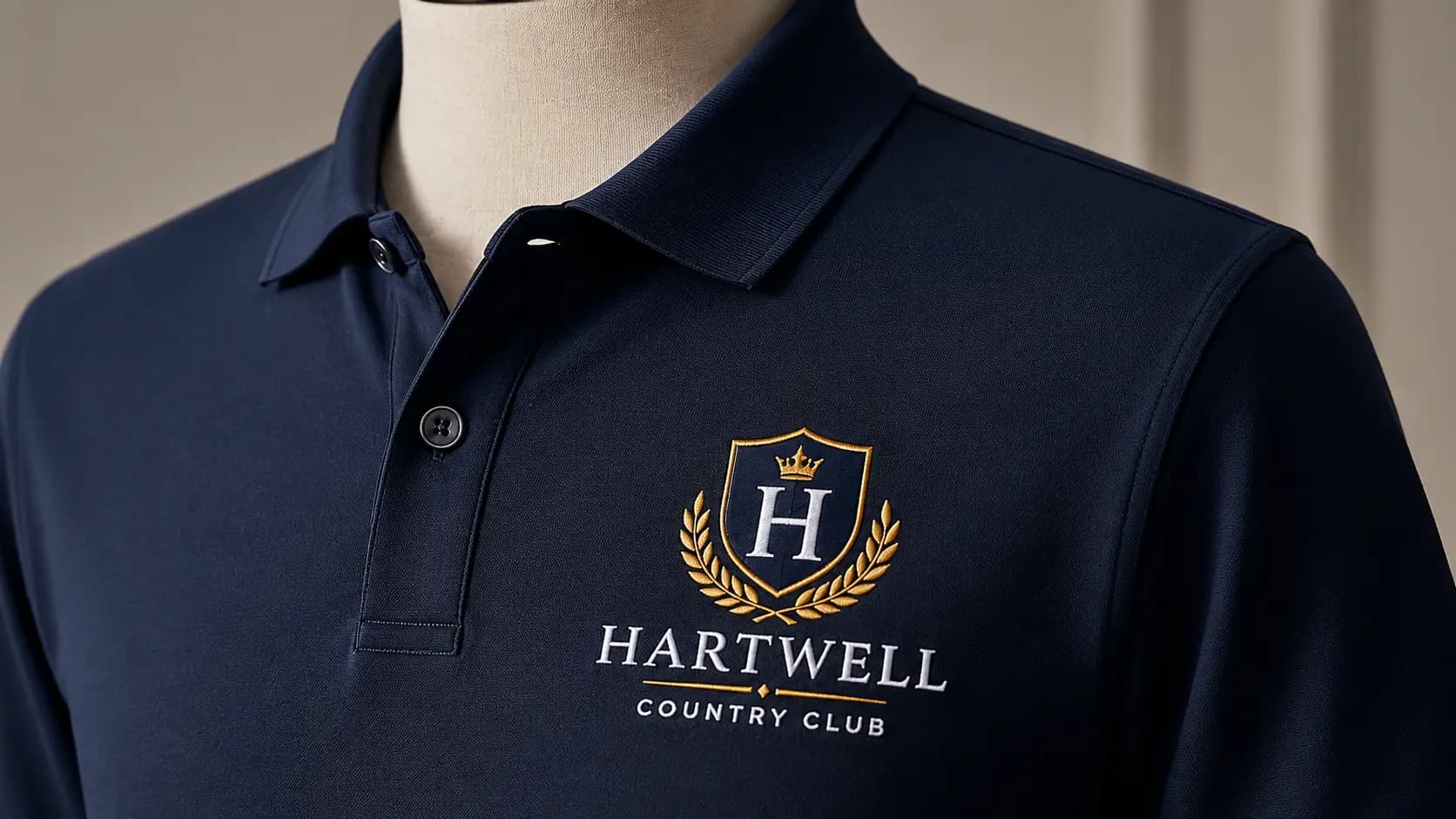
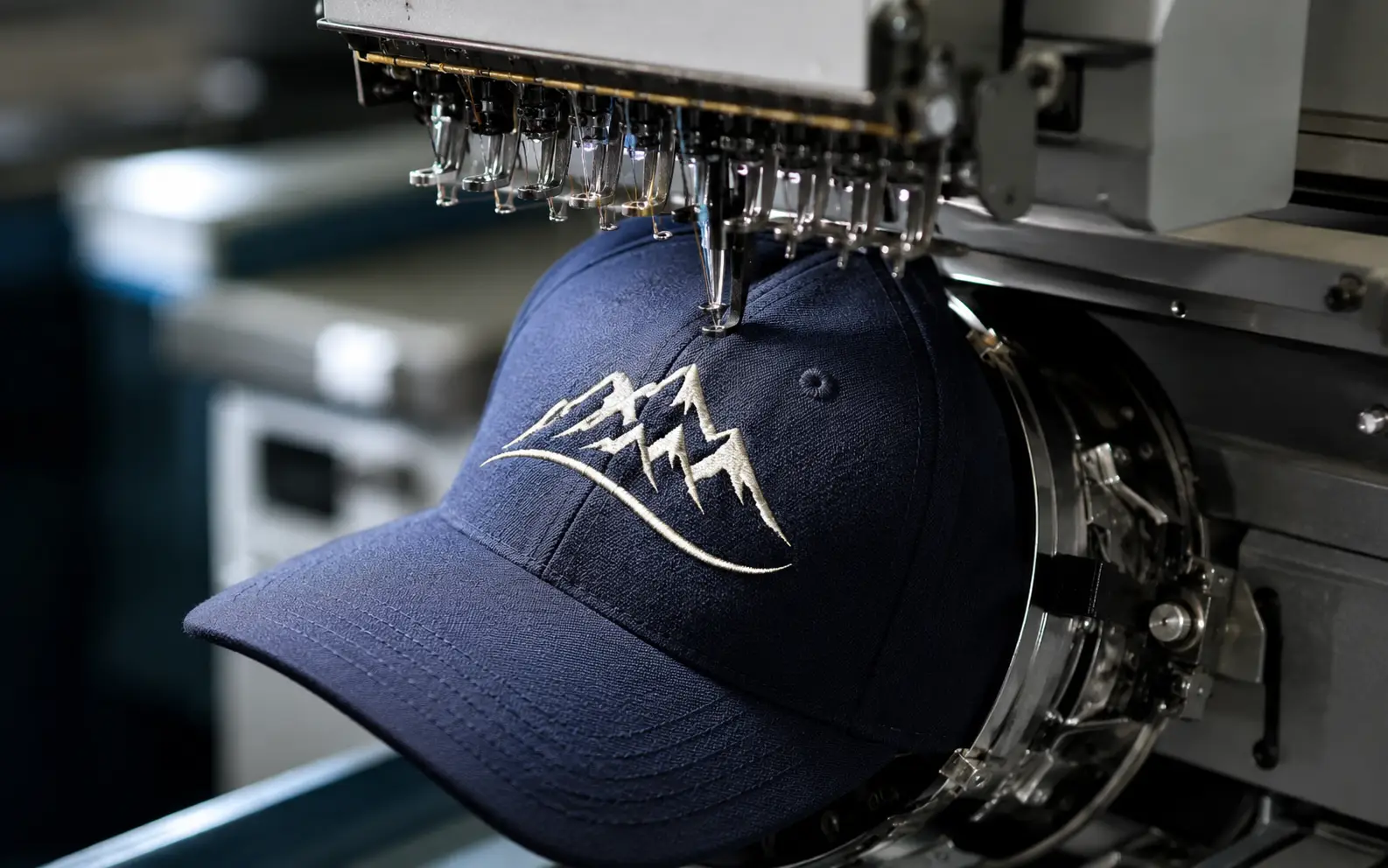
Cap embroidery is the most restrictive  curved surface, small area, and stiff backing material limit both size and complexity. If your logo will be embroidered on caps, expect to simplify it significantly.

Preparing Your Vector File: Step-by-Step

If You Already Have a Vector Logo

  • Open your vector file in Illustrator or compatible software
  • Save a separate copy for embroidery — never modify your print-ready master
  • Simplify fine detail — remove or enlarge elements below 1mm
  • Reduce colors to 6 or fewer, consolidating similar shades
  • Replace all gradients with solid fills
  • Remove drop shadows, glows, and transparency effects
  • Check text size — minimum 6mm height (sans-serif), 8mm (serif), 10mm (script)
  • Check line widths — minimum 1mm for all strokes and outlines
  • Outline all fonts — Type → Create Outlines
  • Verify closed paths — all shapes closed, no open endpoints
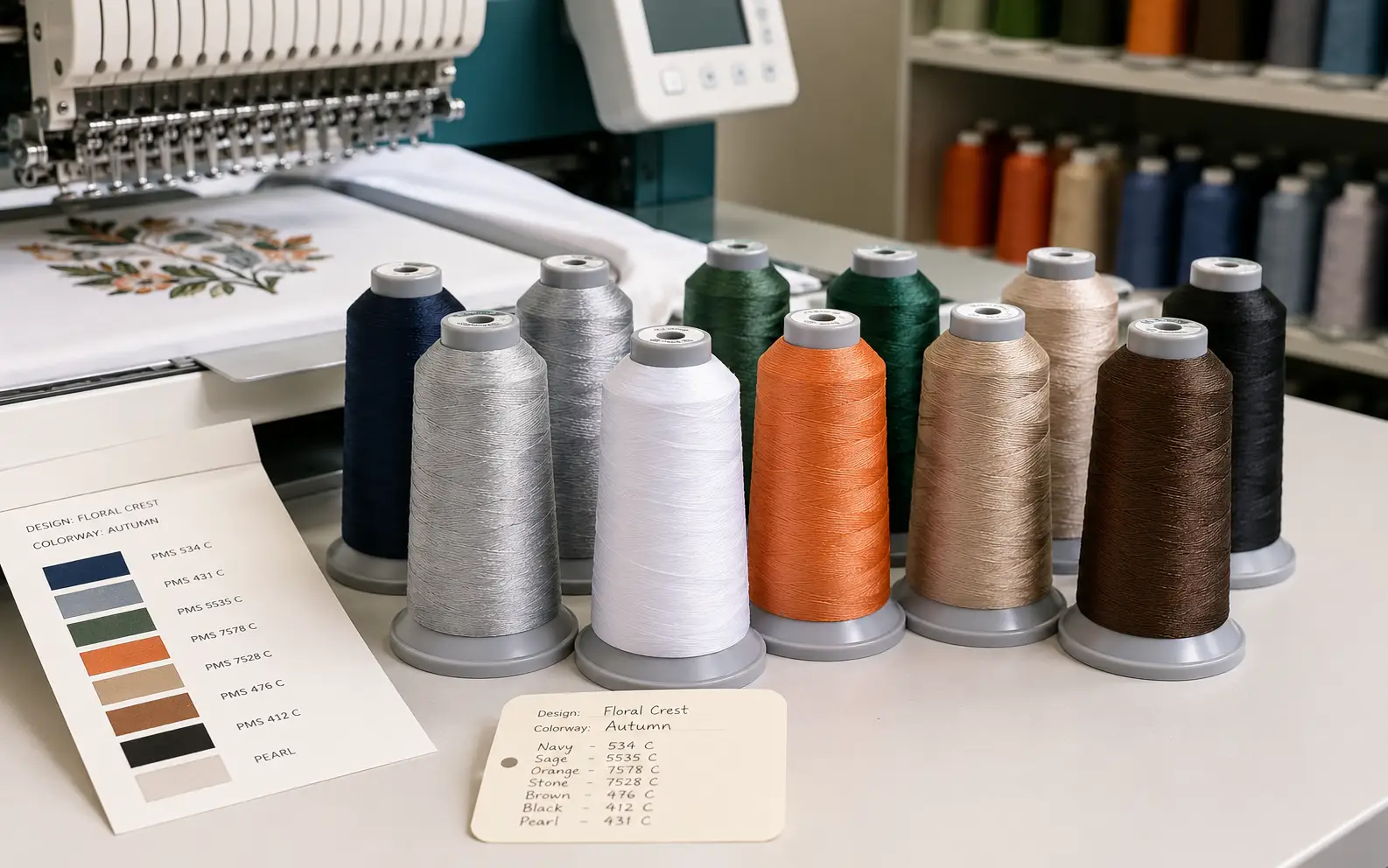
  • Assign thread-friendly colors — Pantone spot colors, or note specific thread brand/number if known (Madeira, Isacord, etc.)
  • Export as AI and EPS with outlined fonts

If You Only Have a Raster Logo (JPEG/PNG)

Your logo needs two things: vectorization (converting pixels to paths) and simplification (adapting for embroidery constraints). These can be done simultaneously by a vectorizer who understands embroidery requirements.

VectorWiz creates embroidery-ready vector files from any source raster or vector. We vectorize your logo and simplify it for embroidery specs in a single order: clean paths, limited colors, appropriate detail level, correct minimum dimensions, all formats included.

Upload Your Logo for a Free Quote

What to Send Your Embroidery Shop

When submitting artwork to your embroidery shop or digitizer, provide:

  • Embroidery-simplified vector file (AI or EPS) — the file the digitizer will work from
  • Full-detail vector or high-res raster — as a visual reference for the intended design
  • Color reference — Pantone numbers, thread color codes, or a printed sample
  • Size specification — exact dimensions for the embroidered area
  • Placement — where on the garment (left chest, cap, back, sleeve)
  • Garment info — color, fabric type, and brand/style if known (affects backing and stitch settings)


Sending both the simplified and full-detail versions lets the digitizer understand what you want AND what’s technically achievable reducing revision rounds.

“Embroidery requires vector artwork adapted for the physical constraints of thread: minimum 1mm line width, 6mm text height (sans-serif), limited color palette (typically 6 or fewer), and no gradients, shadows, or fine detail that can’t be reproduced in stitches. Vector files (AI/EPS) serve as the design reference that digitizers convert into stitch instruction files (DST/PES/EMB). A print-ready vector logo usually needs a separate, simplified version for embroidery  reducing detail, enlarging small elements, and converting gradients to solid fills. The cleaner the vector input, the faster and cheaper digitizing becomes.” – VectorWiz Editorial Team

Final Thoughts

Embroidery works best when your artwork is engineered for thread, not screens. Treat AI/EPS as the clean blueprint: simplify shapes, reduce colors, remove effects, and meet minimum line and text sizes so the digitizer can build reliable stitch paths. 

Doing this upfront saves time, cuts revision rounds, and improves stitch clarity. VectorWiz makes Step 1 easy with embroidery-ready vectors.

Your Questions Answered

No. A PDF can contain vector shapes, text, and also raster images. Many scanned PDFs are mostly raster content. 

Use the zoom test and selection test. Crisp edges and selectable objects suggest vector; pixelation and “one big image” behavior suggest a scan. 

Choose based on where it will be used: SVG for web/UI/docs, EPS/AI for print and professional editing workflows. 

Often it’s not truly vector—it may contain an embedded bitmap. Open it in a vector editor and check if shapes are editable paths. 

Not always. Tracing depends on scan quality and logo complexity. Flat-color logos trace better than noisy scans or detailed artwork. 

Keep text editable when you need future edits and control the fonts. If you need consistent appearance everywhere, convert text to outlines (and keep a copy with editable text). 

Complex masks and transparency effects can render differently across tools. Duplicate the file, simplify masks, and flatten effects only as needed. 

Use a path simplify tool, remove specks/noise, and avoid overly detailed trace settings. Simplify in small steps and visually inspect. 

Yes, but you’ll usually export page-by-page or import pages as separate artboards, then export each page to the needed vector format. 

Many printers accept PDF, but if you’re asked for an editable vector format, EPS or AI is common. Confirm the vendor’s preferred format and whether fonts must be outlined. 

Color profiles, spot colors, and transparency effects can shift between tools. Re-check color settings on export and test the file in a second viewer.

Transform Your Images in Just A Few Steps!

VectorWiz offers Professional Photo Editing Services at clear and affordable prices to meet all image editing needs, from vector conversion and background removal to the most subtle photography projects.

Latest VectorWiz Insights

Why Visual Quality Still Matters: A Conversation with Naimur Rahman
Ghost Mannequin Photography
Drop Shadow vs Natural Shadow

Request a Vector Conversion Quote (Upload Your Files)

Vector Quote Form