How to convert a PDF to vector: AI, SVG or EPS. PDF to vector — the workflow that actually works.
If your PDF was exported from Illustrator, InDesign, CorelDRAW, or any vector source, the artwork inside is already vector — open it in Illustrator or Inkscape, ungroup, and save out as AI, EPS, or SVG. If the PDF is a scan, photo, or rasterized export, you'll need to re-vectorize using either an auto-tracer (fast but messy) or a manual rebuild (slower, production-ready). The first step is always to figure out which kind of PDF you have.

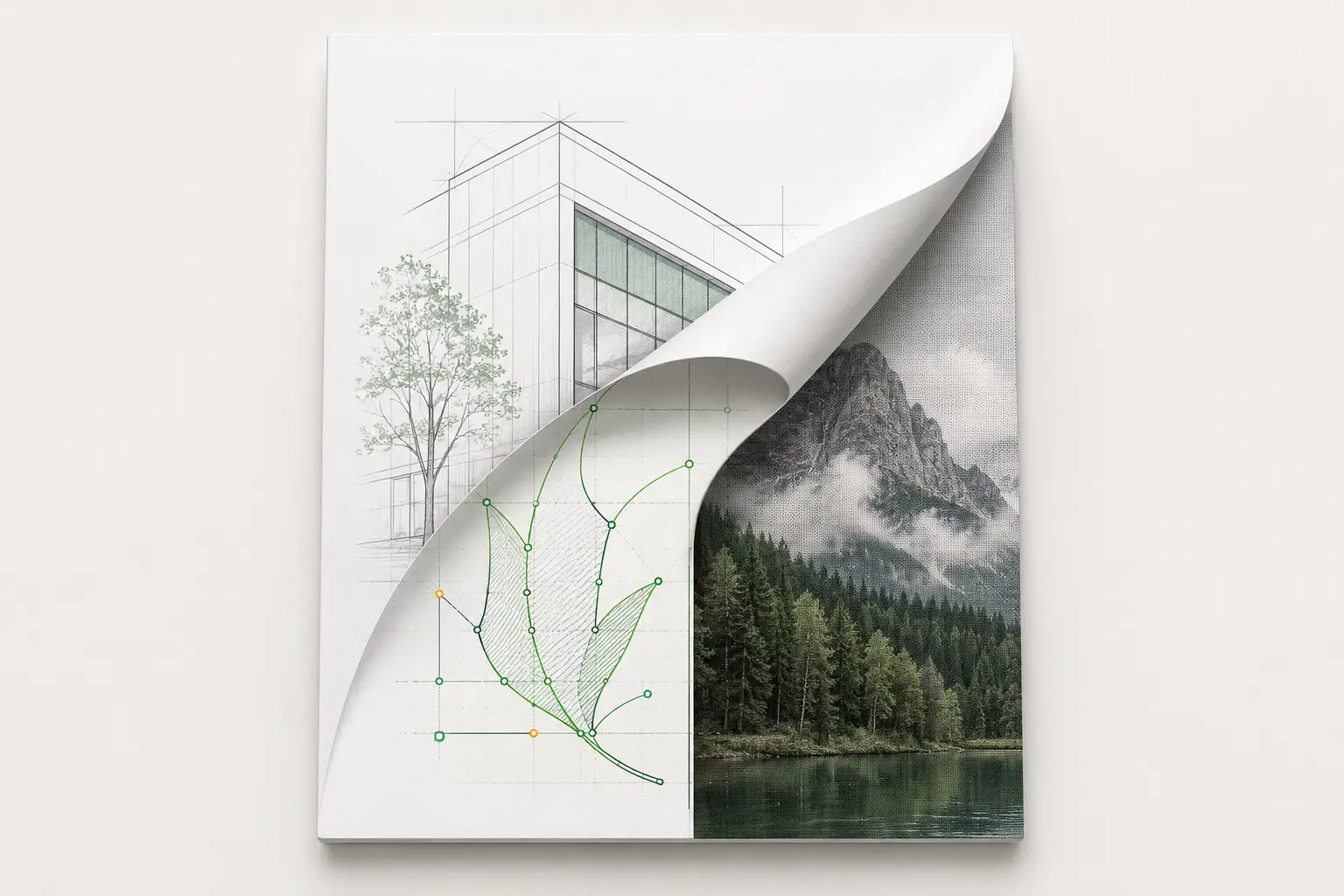
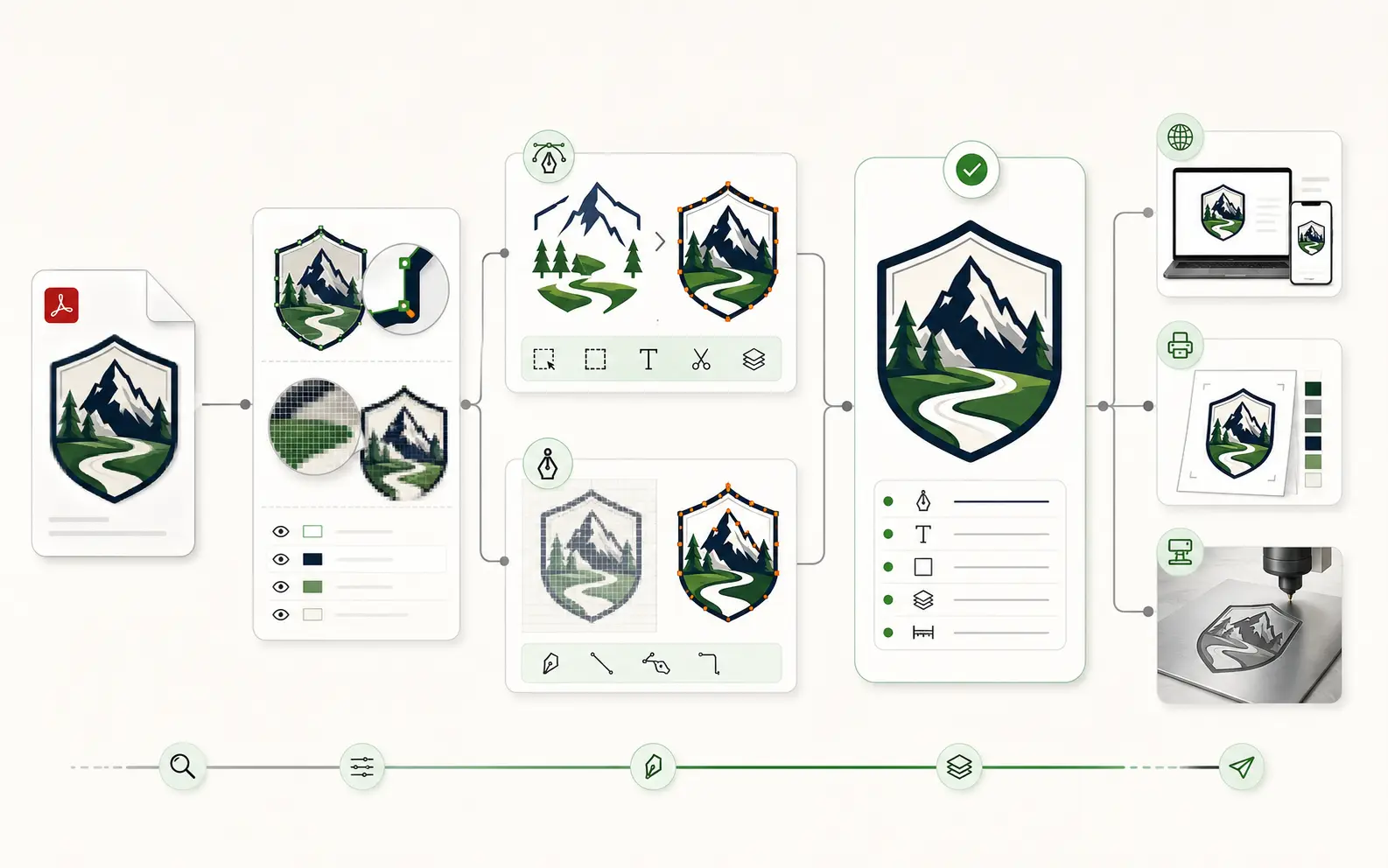
Convert PDF to Vector File in 4 Steps
- Open the PDF and check what's inside
Open in Adobe Illustrator, Inkscape, or Acrobat Pro. If individual elements are selectable as paths, you have a vector PDF. If everything is one flat image, it's been rasterized.
- Vector PDF: extract and re-save
Ungroup the artwork, clean up clipping masks, outline any fonts, and save out as AI/EPS/SVG. This is a format conversion, not a redraw — takes minutes, not hours.
- Raster PDF: pick a conversion path
Auto-trace for quick-and-dirty single-color logos, AI tracer for photographic source, manual rebuild for production output (vinyl, embroidery, screen print, CNC). Pick by what the file is going to be used for.
- Always verify before production
Before production, check paths are closed, fonts are outlined, color layers are separated. Auto-traced output usually fails one of these and breaks production downstream.
Is a PDF a Vector Image?
Before you do any conversion, find out what kind of PDF you've got. The conversion workflow forks completely on this question.
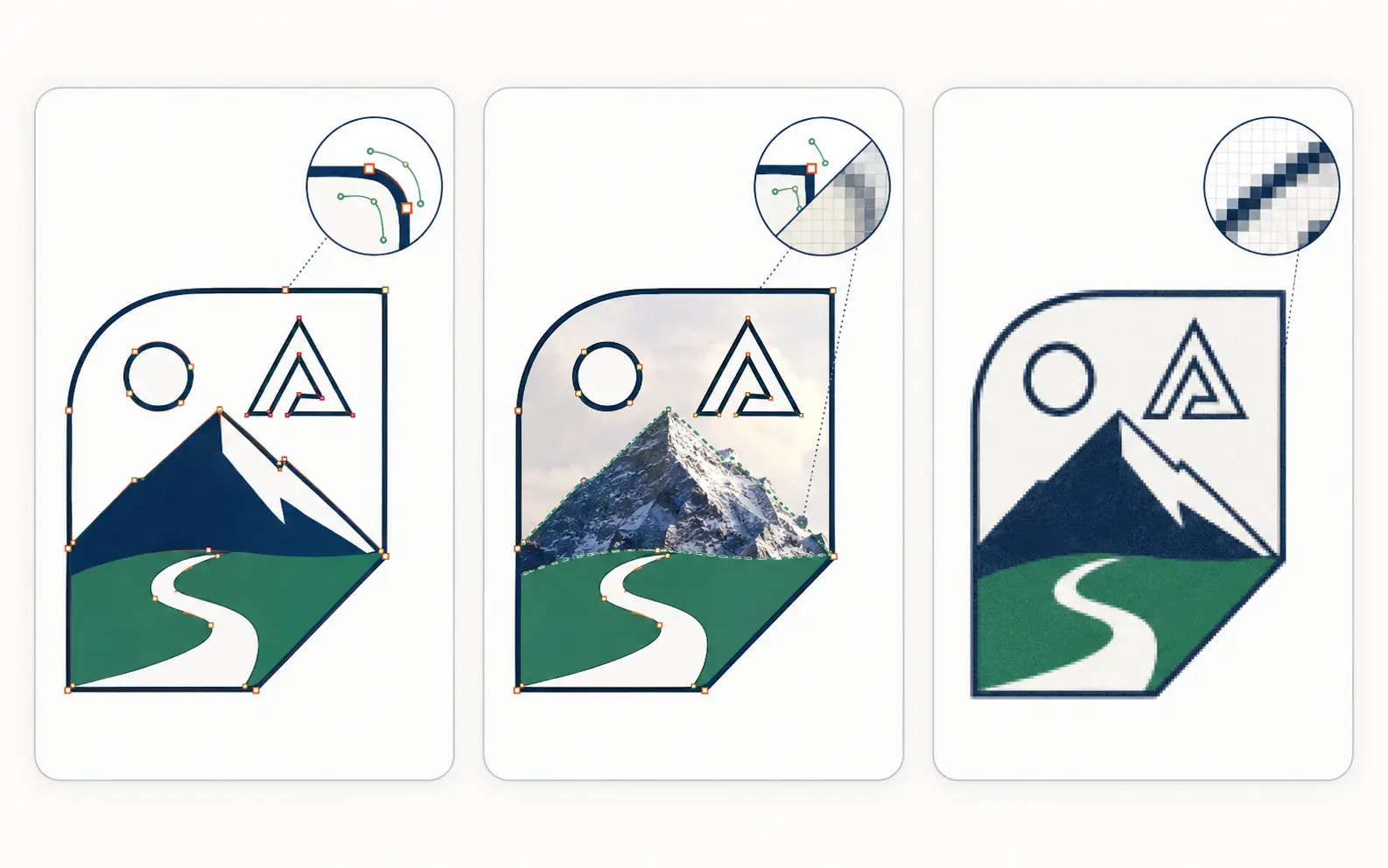
PDFs are containers. They can contain vector data (paths, fonts, colors) or raster data (a flat image of the same artwork) or a mix. The visual result on screen looks identical, but the file underneath determines whether you can convert it in 30 seconds or whether you need to re-draw it.
- Open the PDF in Adobe Illustrator (or Inkscape, or Affinity Designer).
- Click on the artwork. If individual shapes (the letters in your logo, the colored regions of an icon) become selectable as separate paths, the PDF is vector.
- Use the Direct Selection tool (white arrow in Illustrator) and click on a shape. If you can see and edit the anchor points, it's vector.
- Try zooming in to 800%. Vector artwork stays crisp at any zoom level. A rasterized PDF will pixelate.
- If everything appears as one flat image and zooming reveals pixels, the PDF is raster — even if the file extension says PDF.
| Format | Always vector? | Typical use |
|---|---|---|
| No. It can hold vector paths, pixels or both | Print-ready hand-offs to commercial printers | |
| SVG | Usually, but it can embed images | Web display and modern cut software |
| EPS | No. It can wrap a placed raster image | Older sign-shop software and RIPs |
| DXF | In practice, yes: lines, arcs and curves | CNC routing, laser cutters and plasma tables |
If your PDF is already vector
Good news — the conversion is mostly a format swap. The path data already exists; you just need to re-save it in a different container.
Workflow: vector PDF → AI / EPS / SVG
- Open in Illustrator
File → Open → select your PDF. If it's multi-page, you'll get a page picker. Pick the page you want and click OK.
- Ungroup if needed
Some PDFs come with deeply nested groups or clipping masks. Right-click → Ungroup (or Cmd/Ctrl + Shift + G) until you can edit individual shapes.
- Outline fonts
Type → Create Outlines (Cmd/Ctrl + Shift + O). This converts every text glyph to a vector path. Any font that wasn't embedded in the PDF will now stay correct even on machines without that font installed.
- Save in your target format
File → Save As → choose AI for editing source, EPS for legacy production software, or SVG for web/modern cut software. For SVG, check 'Outlines' so the result doesn't reference fonts.
If your PDF is raster (scanned, photographed, or rasterized)
This is the case where you actually need a vector conversion. Pick the workflow that matches what the file will be used for.
| Aspect | Auto-trace | AI tracer | Manual rebuild |
|---|---|---|---|
| Best for | Single-color, high-contrast logos | Photographic source, complex gradients | Production output (vinyl, embroidery, screen print, CNC) |
| Time | Seconds | Seconds to 1 minute | 4–24 hours |
| Cost | Free (Image Trace) | $9–25/mo subscription | $19–$190 per job |
| Output quality | Many redundant nodes; needs cleanup | Better path geometry; still raw | Production-correct, layered, named swatches |
| When to choose | Quick web preview or sketch | Stylistic vectorization (illustrations) | Anything going through a plotter, screen, or CNC |
Auto-trace in Adobe Illustrator (Image Trace)
- Open the PDF
File → Open → your raster PDF. The image will appear as a placed raster object.
- Window → Image Trace
Open the Image Trace panel.
- Pick a preset
Black and White Logo for single-color logos; 6 Colors / 16 Colors / Photo for multi-color or photographic source. Adjust thresholds until the preview looks acceptable.
- Expand
Click Expand to convert the trace into editable vector paths.
- Clean up
Auto-traced output has too many anchor points. Object → Path → Simplify, or manually delete unnecessary nodes. Outline fonts. Group by color and rename layers if you need separation.
AI vector converters (Vectorizer.AI, vector.ai, Adobe Firefly)
AI-trained vectorizers produce noticeably cleaner geometry than path-finding auto-tracers, especially on photographic source. Vectorizer.AI and vector.ai both accept PDF/PNG/JPG and return SVG/AI/EPS. Subscription is typically $9–25/month. The output still needs production prep (color separation, font outlining, layer structure) but the underlying paths are tighter.
Use AI tracers when the source is illustrative or photographic and you want a stylized vector result. They're not magic — they don't read your mind about which color goes on which screen, what your plotter expects, or whether the embroidery digitizer needs single-stroke fonts. That part is still on you.
PDF won't behave? A human rebuilds it as a clean, editable vector.
Raster-in-a-PDF, wrong fonts, no layers — we redraw it production-correct in the format you need. Instant price, 24-hour turnaround.
Need something custom? Email hello@vectorwiz.com
Manual rebuild (the production-correct path)
If the file is going to a vinyl plotter, an embroidery digitizer, a screen-print press, a CNC table, or any production process where path quality and color layering actually matter, the only reliable conversion path is a manual rebuild — a designer redrawing the artwork from scratch using the raster as a reference.
Manual rebuilds produce closed paths with the minimum nodes needed, fonts outlined cleanly, colors separated by ink layer, and structural specifics tuned to the production process (single-stroke for rotary engraving, halftone-angled for screen seps, kerf-compensated for channel letters). This is what VectorWiz's vector conversion service does. Pricing scales with complexity across four tiers — $19 (Simple), $57 (Moderate), $114 (Complex) and $190 (Production-grade) per job, set instantly when you upload.
Picking the right output format
PDF can convert to almost any vector format. The right target depends on what the file will be used for downstream.
| Target format | Best for | How |
|---|---|---|
| AI (Adobe Illustrator) | Editing source, design handoff | File → Save As → Adobe Illustrator (.ai) |
| EPS | Older sign-shop software, RIPs | File → Save As → Illustrator EPS |
| SVG | Web display, modern cut software, embed in HTML | File → Save As → SVG; check 'Outlines' to preserve type |
| DXF | CNC routing, laser cutters, plasma tables | File → Export → AutoCAD DXF (R12 or 2000 dialect) |
| PNG (vector-rendered) | Sharing a preview on email/Slack | File → Export → PNG at 2× the display size |
Common pitfalls when converting PDF to vector
- Trusting auto-trace output without cleanup. Plotters and CNC tables choke on hundreds of redundant nodes.
- Forgetting to outline fonts. The PDF may embed the font, but your vector target may not — outline before saving to be safe.
- Treating a flattened PDF as if it were vector. If the source PDF is rasterized, no amount of 'opening in Illustrator' will magically make it editable.
- Saving SVG without 'Outlines'. SVG references fonts by name; without outlining, the file breaks on machines lacking those fonts.
- Skipping color separation. Multi-color jobs need the conversion to ship layered (one ink color per layer), not as a single merged path.
- Choosing AI tracers for production output. AI tracers are great for illustration but don't produce production-spec geometry.
Frequently asked questions
How do I turn a PDF into a vector image?
It depends on what is inside the PDF. If it was exported from Illustrator, InDesign or another vector program, the PDF to vector image step is a format swap: open it, ungroup, outline fonts and save as AI, EPS or SVG. If it is a scan or a flattened export, the artwork has to be traced or redrawn by hand.
How do I convert a PDF to AI?
Open the PDF in Adobe Illustrator (File → Open), ungroup the artwork, outline fonts with Type → Create Outlines, then choose File → Save As → Adobe Illustrator (.ai). This only gives you editable paths if the PDF is vector. A raster PDF opens as a placed image and needs tracing or a rebuild first.
What is a vector tracer, and can it convert a raster PDF?
A vector tracer is software that follows the edges in a raster image and turns them into paths. It works best on single-color, high-contrast logos and struggles with small type, gradients and fine detail, which leave redundant nodes to clean up. Export the PDF page as a PNG and test it in our free vector tracer to see where the trace breaks.
How can I tell if my PDF is vector or raster?
Open in Illustrator or Inkscape. If individual elements are selectable as separate paths, it's vector. If everything appears as one flat image and zooming pixelates the artwork, it's raster. In Acrobat Pro, the Output Preview tool shows separations — vector PDFs have CMYK/spot channels; raster PDFs have a single Image channel.
Can I convert a vector PDF to SVG without Illustrator?
Yes — Inkscape (free, open-source) handles vector PDF imports cleanly. Open the PDF, ungroup if needed, then File → Save As → Plain SVG. Online converters like CloudConvert or PDF24 work too but the quality varies. For anything heading to production, use Illustrator or Inkscape on your machine for control.
What's the best AI tool for converting raster PDF to vector?
Vectorizer.AI and vector.ai are the current leaders for AI-trained raster-to-vector conversion. Both produce noticeably cleaner geometry than Adobe's Image Trace, especially on photographic source. Pricing is $9–25/mo. They're stylistic vectorizers — for production output, you'll still need to do color separation, font outlining, and layer structure on top.
How long does it take to convert a PDF to vector manually?
A vector PDF you're just re-saving as AI/EPS/SVG takes 5–10 minutes (open, ungroup, outline fonts, save). A raster PDF that needs full re-vectorization takes 30 minutes for a Simple single-color logo, 1–2 hours for Moderate complexity, 3+ hours for full Production-grade jobs. Auto-trace cleanup typically eats the same time.
Does Illustrator's Image Trace work for production output?
Sometimes — for single-color, high-contrast logos with no fine detail, the output can be production-acceptable after cleanup. For anything multi-color, photographic, or with fine type, the cleanup time after Image Trace is usually longer than the cost of having a designer rebuild from scratch.
Can I convert PDF to DXF for laser cutting or CNC?
Yes, but the path is two-step. First convert PDF to vector (AI/EPS/SVG), then export from Illustrator as DXF (File → Export → DXF, R12 or AutoCAD 2000 dialect). For production CNC work the cut paths need to be closed and clean — a manual rebuild produces better results than auto-trace + DXF export.
What if the PDF has rasterized text I need as editable type?
If the type is rasterized, you'll need to either re-typeset it (identify the font, set fresh type, replace the raster region) or accept it as raster-derived vector outlines. Manual rebuilds re-typeset; auto-tracers convert the rasterized type into ugly traced shapes that don't look like the original font.
Should I convert PDF to vector myself or hire a designer?
Hire when the output goes to production (vinyl plotter, embroidery, screen print, CNC) — the cleanup hours after a self-trace exceed the conversion cost. DIY when it's a one-off web display, a quick preview, or a single-color logo where Image Trace + 10 minutes of cleanup is fine. VectorWiz prices manual rebuilds instantly at upload; order a redraw.
Can I vectorize a PDF online for free?
Only partly. A free online tool can trace a raster PDF, and our free vector tracer takes the PDF as it is, traces page 1 in your browser and never uploads the file. That is fine for a quick preview or a simple one-color mark. For lettering, gradients or anything heading to a cutter, press or engraver, check the paths at high zoom or have the logo redrawn by hand.
Imran Hossain
Owns the tooling and automation behind our workflow. Keeps file output precise and consistent.
Related articles
Drawn by hand. Built for production.
Hand-redrawn from $19, back in 24 hours. Upload for an instant price, no commitment.