How to vectorize an image (raster to vector) Pick the path by what the file is for.
Converting raster to vector means going from a pixel grid (PNG, JPG, scanned PDF) to vector paths (SVG, AI, EPS, DXF). Three paths: (1) Adobe Illustrator’s Image Trace or Inkscape’s Trace Bitmap — free or cheap, fast, needs cleanup; (2) AI vectorisers (Vectorizer.AI, vector.ai, Adobe Firefly) — $9–25/mo, cleaner output, still raw geometry; (3) Manual rebuild by a designer — slowest, most expensive, but production-correct on delivery.

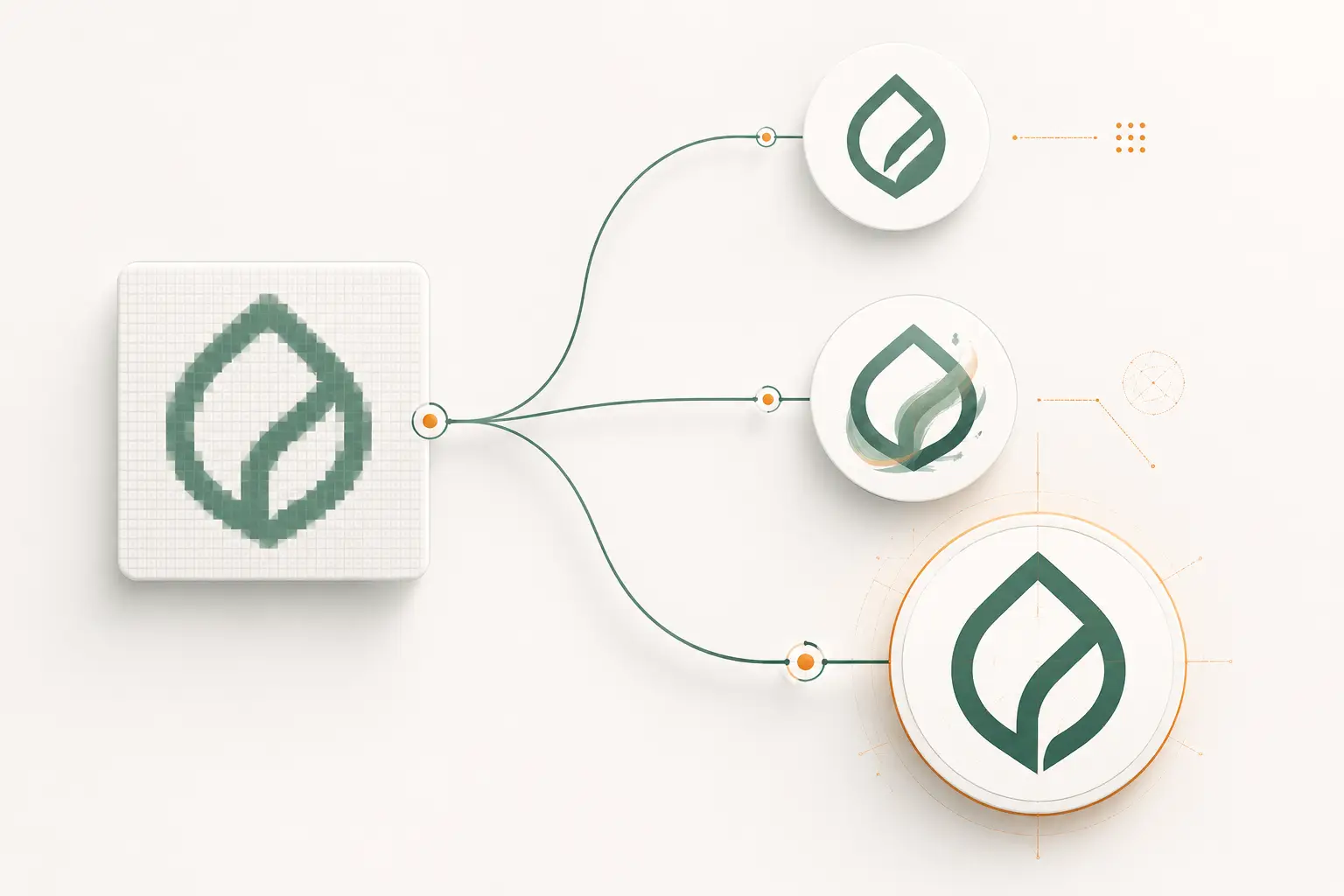
- Identify the target output
Web display, print at multiple sizes, vinyl plotter, embroidery digitizer, CNC router. Each has different file requirements that drive tool choice.
- Inspect the source
Resolution, contrast, complexity, color count, fine type. The source quality determines what the conversion can do — garbage in, garbage out.
- Pick the conversion path
Auto-trace for simple high-contrast logos heading to web/personal use. AI vectorisers for stylistic photo-to-illustration. Manual rebuild for anything heading to production tooling.
- Clean up and verify
Auto-traced output needs cleanup (node reduction, font outlining, layer structure). Verify by zooming to actual output size and checking edges, joins, colour separation.
Step 1: identify your output target
The conversion approach depends entirely on what the resulting vector file is going to be used for. Skipping this step and just running an auto-tracer is the #1 cause of files that look fine on screen but break in production.
- Web display, social, app icon
- Auto-trace is fine. Quality matters less than file size and round-trip speed.
- Print at multiple sizes (logos, business cards, posters)
- AI vectoriser or auto-trace + cleanup. Output needs to be edge-clean at any size.
- Vinyl plotter
- Manual rebuild. Auto-traced paths usually have open contours or sub-pixel jitter that the plotter chokes on.
- Embroidery digitizing
- Manual rebuild. The digitizer needs stitch-friendly geometry, not just any valid vector.
- Screen-print spot colour
- Manual rebuild + colour separation. Each ink needs its own clean layer.
- CNC routing, laser, plasma
- Manual rebuild. Closed-path DXF in AutoCAD 2000 dialect.
- Engraving (rotary, fiber)
- Manual rebuild. Single-stroke fonts for rotary, outline-only for fiber.
Step 2: inspect your source
- Resolution. At least 2000×2000 for AI tools. 1200×1200 is the practical minimum for auto-trace.
- Contrast. High-contrast (black logo on white) traces cleanly. Low-contrast or noisy source produces messy output.
- Colour count. 1–4 colours: spot-colour-friendly. 5+ colours: prefer simulated-process or AI vectorisation.
- Fine type. Small text at low resolution traces poorly — consider re-typesetting in the original font.
- Subject. Logo / icon / illustration → vector wins. Photograph → vector struggles; consider whether you actually need vector.
Step 3: pick the conversion tool
For a quick automatic draft, run the file through our free vector tracer first, then decide whether it needs a hand redraw.
| Source | Best tool | Why |
|---|---|---|
| High-contrast B&W logo | Illustrator Image Trace or Inkscape Trace Bitmap | Fast, free or cheap, output is usable with light cleanup. |
| Multi-color logo with subtle gradients | Vectorizer.AI or vector.ai | AI handles colour quantisation better than path-finding tracers. |
| Photo to be stylised as illustration | Vectorizer.AI, vector.ai, Adobe Firefly Vector | AI vectorisers produce illustration-style output from photographic source. |
| Production-buyer job (vinyl, embroidery, etc.) | VectorWiz manual rebuild | Auto-trace cleanup eats the same hours as manual rebuild and produces worse files. |
| Engineering drawing or floor plan | Adobe Illustrator + manual trace | Engineering drawings need exact dimensions; auto-trace introduces sub-pixel drift. |
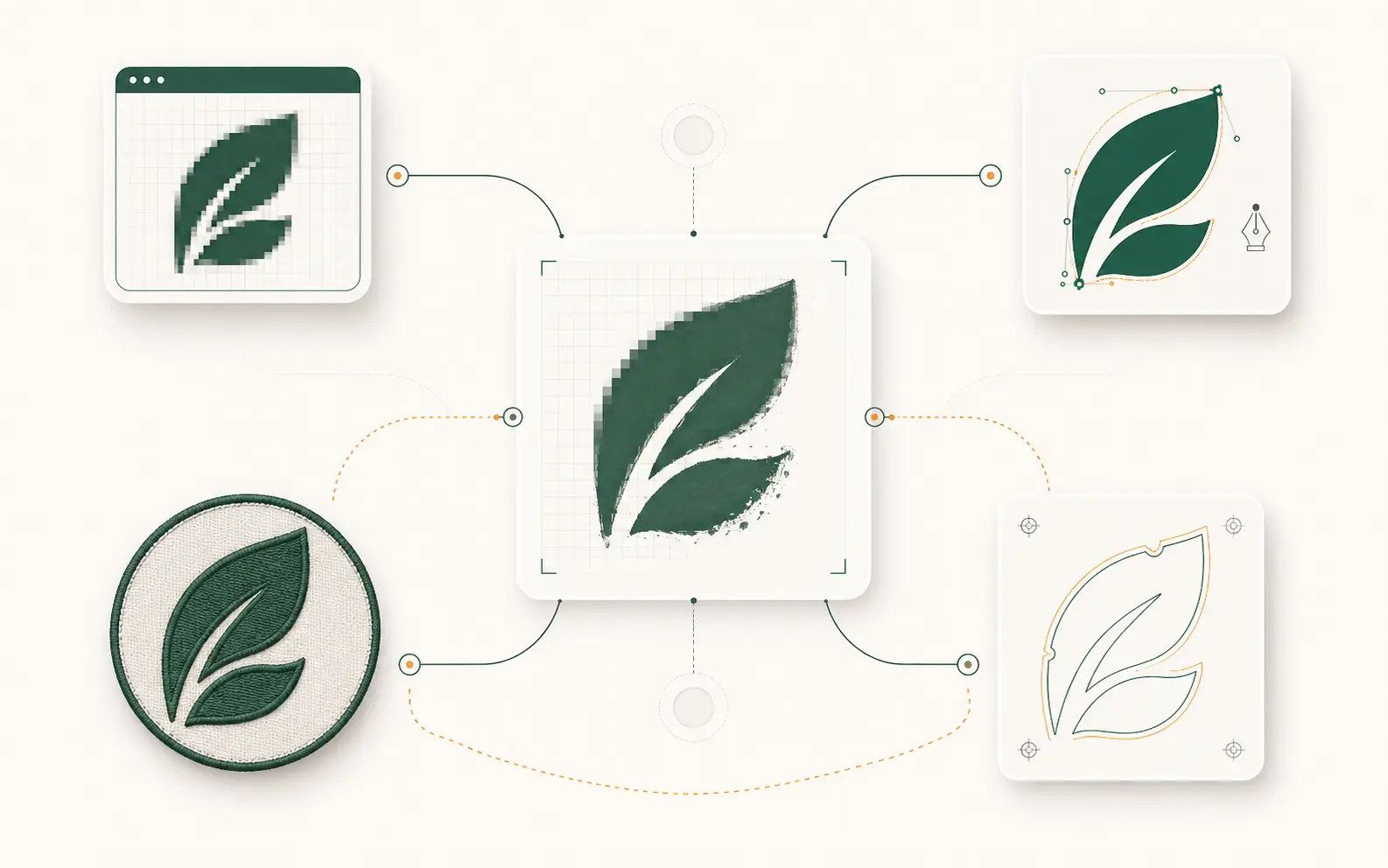
Step 4a: vectorize an image in Illustrator (Image Trace)
- Place the raster
File → Place → select your PNG/JPG/TIFF. The raster appears as a placed object on your canvas.
- Open Image Trace
Window → Image Trace. Pick a preset that matches the source: 'Black and White Logo’ for single-color, '6 Colors’ or '16 Colors’ for multi-color, 'Photo’ for photographic source.
- Adjust thresholds
Threshold (B&W mode) controls what counts as foreground vs background. Paths slider controls smoothness. Corners controls how sharp angles render. Iterate until the preview looks correct.
- Expand
Click Expand. The trace converts from a live image to editable vector paths.
- Clean up
Object → Path → Simplify (Cmd/Ctrl + Shift + S). Reduce anchor points until edges look clean but not coarsened. Outline all type (Type → Create Outlines, Cmd/Ctrl + Shift + O). Save as AI, EPS, SVG, or PDF.
Step 4b: AI vectoriser workflow (Vectorizer.AI as example)
- Upload
Vectorizer.AI accepts PNG, JPG, PDF, WebP, GIF. Drag-and-drop or browse-to-upload. Up to 1024×1024 free; higher resolution requires a paid tier.
- Adjust detail
Detail slider controls how faithful the output is to the source. Less detail = more stylised. Iterate; the preview updates in seconds.
- Download
Pick the output format: SVG (web), AI (Illustrator), PDF (print), DXF (CNC). Download.
- Clean up (still required)
Open in Illustrator. Outline type, name layers per colour, check for stray paths. Most AI output is closer to production-ready than auto-trace but still needs a pass.
Don't want to trace it yourself? A human does it production-correct.
Send your raster and get back clean, machine-ready vectors — minimal nodes, real colors, the right format. Instant price, 24 hours.
Need something custom? Email hello@vectorwiz.com
Step 4c: manual rebuild (the production path)
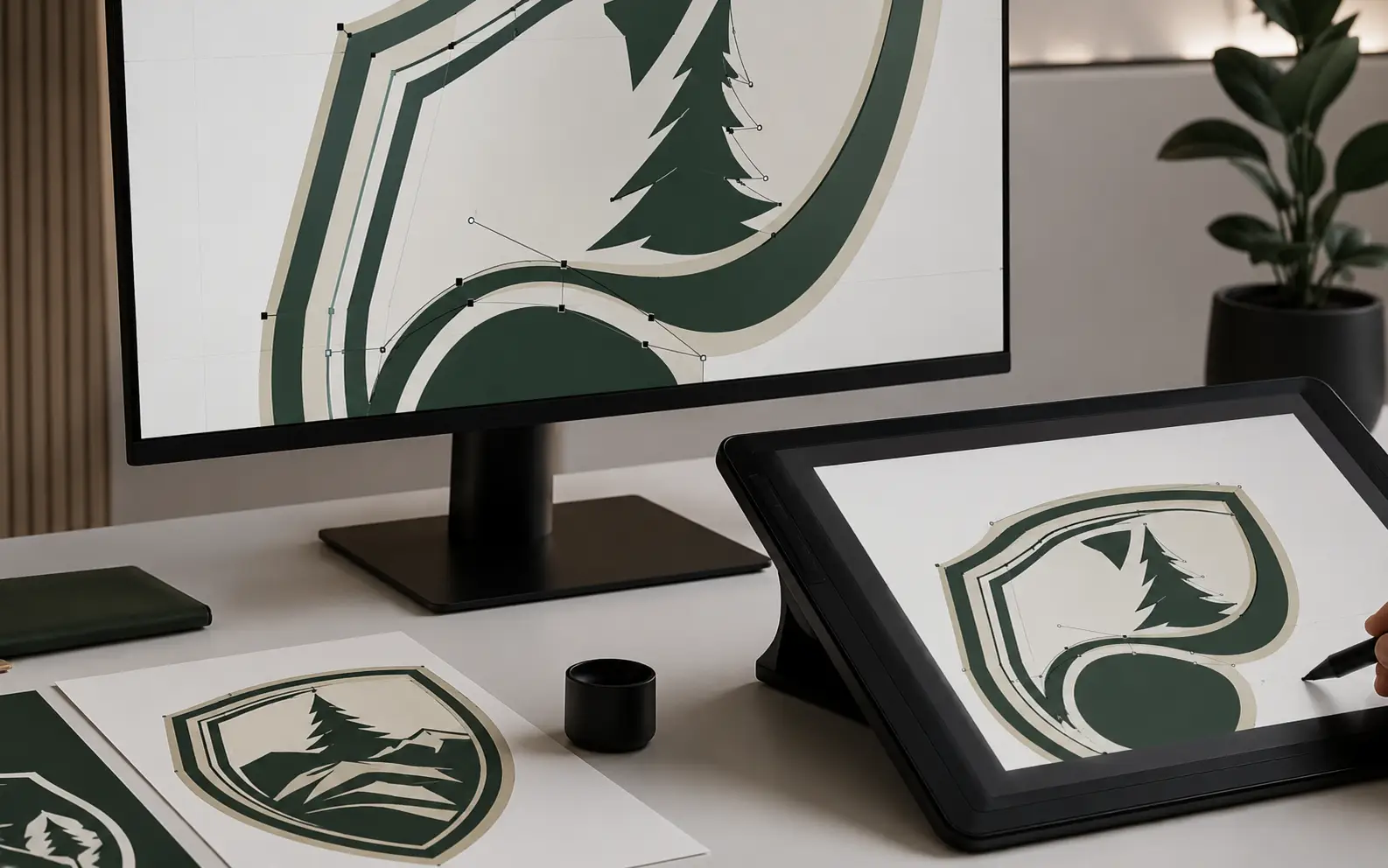
For production-buyer output — vinyl, embroidery, screen print, CNC, engraving — manual rebuild is the right answer. A designer redraws the artwork on top of the raster reference using the Pen tool, producing clean closed paths with the minimum anchor points needed to describe each shape.
Time: 30–60 min for Simple (single-color clean logo); 1–2 hr for Moderate (multi-color, some interpretation); 2–4 hr for Complex (gradients, halftones, complex composition); 4+ hr for Production-grade (photo-derived full reconstruction). Production-buyer shops typically outsource to a specialist (VectorWiz, in-house freelancer, or a designer subcontractor).
Step 5: cleanup checklist
- Closed paths — every shape’s start and end points should connect, especially for cut-line work.
- Minimum anchor points — Object → Path → Simplify with a tight tolerance.
- Outlined type — Type → Create Outlines so the file renders correctly even without the source font installed.
- Layer structure — one layer per output stage (per ink colour for screen print, per cut depth for CNC, per fabrication step for signage).
- Named swatches — Pantone codes or named colours so the press operator picks the right inks without guessing.
- No embedded raster — make sure the trace went all the way; an embedded raster image inside the file defeats the purpose.
- Stroke vs fill — production tools care which is which. Stroke = cut path or engrave line; fill = solid colour region.
Common mistakes
- Trusting auto-trace output for production. The cleanup step is mandatory, not optional.
- Skipping font outlining. The vector ships without the source font; the customer’s machine reverts to fallback fonts and the file looks wrong.
- Mixing stroke and fill on the same path. Production tools handle strokes (cut paths) and fills (regions) differently — picking the wrong one breaks the workflow.
- Using PNG/JPG output of a vector trace as if it were still vector. Once you export to a pixel format, the vector is lost; keep the AI/SVG source.
- Not zooming to actual output size to check edges. Vectors look fine at any zoom; bugs only show up at the actual output resolution.
- Ignoring the layer structure. A multi-color file with everything on one layer is hard to separate downstream; one layer per ink colour saves the press operator an hour.
Frequently asked questions
What’s the easiest way to convert a PNG to SVG?
Adobe Illustrator: File → Place → your PNG → Window → Image Trace → pick a preset → Expand → File → Save As → SVG. Inkscape: File → Open → your PNG → Path → Trace Bitmap → pick mode → OK → File → Save As → SVG. PNG-specific detail — checking the source file, the alpha fringe problem, and what production needs — is covered in our guide to converting a PNG to vector at /guides/png-to-vector.
Can I convert a JPG photo to vector?
A photograph becomes a stylized illustration, not the photo. Flat logos are a different problem: JPEG compression and the background baked into the pixels decide whether a trace is usable. JPEG-specific detail — blocking on the edges, the lack of an alpha channel, and what a cutter needs — is in our guide to converting a JPG to vector at /guides/jpg-to-vector.
Can I convert a GIF to vector?
A flat, single-frame GIF with hard edges can be traced like any limited-color logo. Dithering and animation are the GIF-specific problems: the dots become thousands of shapes, and an animation has no single frame that is the logo. That case is covered in our guide to converting a GIF to vector at /guides/gif-to-vector.
How do I make sure my vector cut paths are closed?
In Illustrator: select all → Object → Path → Average + Join. Or open the Path panel and look for open-path warnings. For DXF export, set every cut layer to ensure paths are closed (Object → Path → Join, then verify with the live path-direction tool).
What resolution does the source raster need to be?
For auto-trace, 1200×1200 is the practical minimum; 2000×2000 produces noticeably cleaner output. For AI vectorisers, 1024×1024 is the lower bound on free tiers, with paid tiers accepting higher. For manual rebuild, source resolution matters less because the designer is using the raster as reference, not tracing pixel-by-pixel.
Why does my auto-traced logo look fuzzy in the plotter preview?
Auto-trace usually produces paths with hundreds of redundant anchor points and sub-pixel jitter along edges. The plotter interprets each as a movement command, so the cut path zigzags rather than tracing a clean curve. Fix: Object → Path → Simplify with tighter tolerance, or rebuild manually for production output.
Can I trust the Image Trace defaults?
For simple high-contrast logos, often yes. For multi-color logos, gradients, or photographic source, the defaults rarely produce production-quality output. Always preview at actual output size, simplify aggressively, outline type, and check the layer structure before shipping the file.
What’s the difference between Image Trace and Live Trace?
Live Trace was the older Adobe term (Illustrator CS6 and earlier); Image Trace is the renamed version in Adobe Creative Cloud. Same feature, slightly improved algorithms. If you see 'Live Trace’ in older tutorials, it’s the same workflow.
How fast is hand rebuild compared to auto-trace?
Auto-trace: seconds to convert, 15–60 minutes of cleanup before production-ready. Hand rebuild: 30 min for Simple, 1 hour for Moderate, 2–4 hour for Complex and Production-grade — no cleanup step downstream. For production work, the total time is comparable, but the hand-rebuilt file ships clean and the auto-traced file requires the cleanup step every time.
Tanvir Chowdhury
Runs production operations at VectorWiz. Writes about file briefs, intake, and the production-side details shops learn the hard way.
Related articles
Drawn by hand. Built for production.
Hand-redrawn from $19, back in 24 hours. Upload for an instant price, no commitment.