How to turn a Canva design into a print-ready vector file Canva looks print-ready on screen. Production still has to open the file.
A Canva design becomes print-ready vector only when the shapes a machine needs are real closed paths — not photos, soft shadows or flattened effects sitting inside an SVG or PDF. Download SVG or PDF Print, open the file in a vector program, and zoom hard: stair-stepped edges mean the export still holds raster. Flat logos built from Canva shapes often export cleanly enough for simple digital print; vinyl cutting, screen separations, embroidery and contour-cut stickers usually need a hand redraw once anything is embedded or effects-heavy.

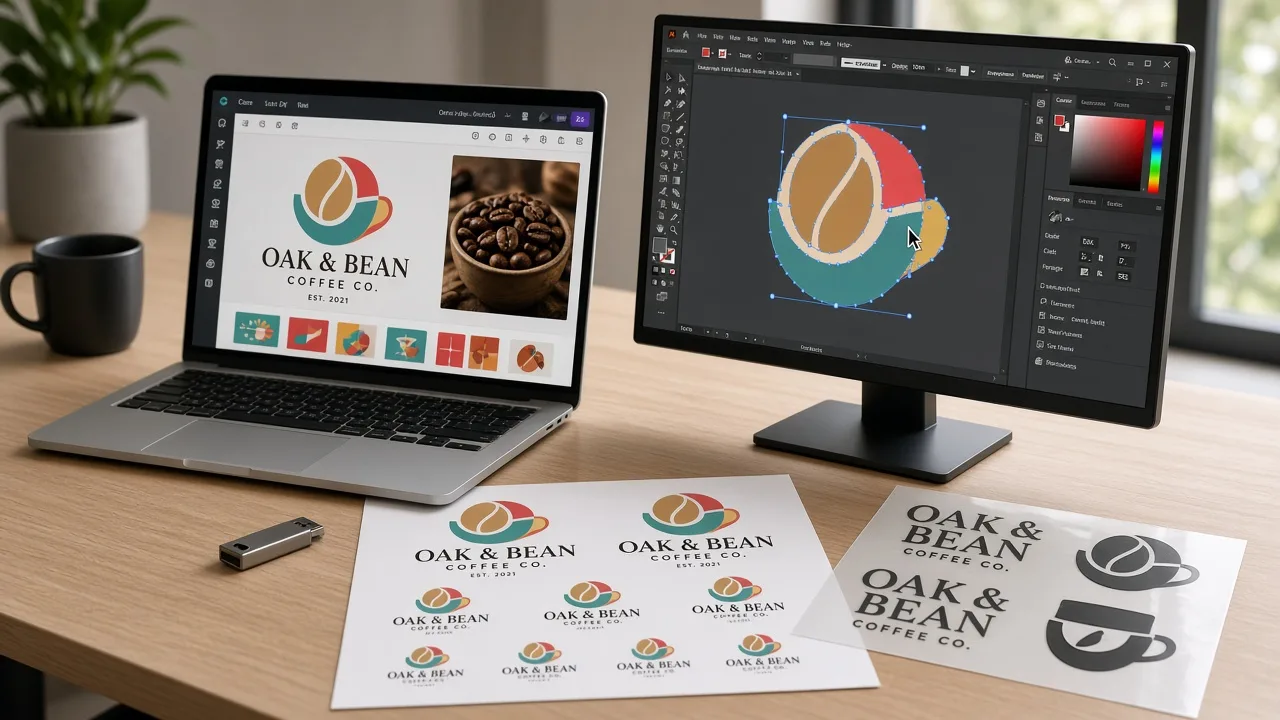
- Export the least-lossy file
Prefer SVG or PDF Print over PNG or JPG. Keep a copy of the Canva project for changes.
- Open and zoom
In Illustrator, Inkscape or Affinity, check every element. Photos and soft effects that look sharp at 100% fail at production scale.
- Outline, expand, or redraw
Outline fonts, expand strokes that must cut, and rebuild anything that is still pixels for the process you are sending to.
Why Canva exports surprise shops
Canva is built for layout on a screen. Plotters, screens and digitizers are built for paths. The gap shows up the moment someone downloads "SVG" and assumes every logo element will cut.
That mismatch is exactly the kind of file VectorWiz redraws by hand for shops: keep the look the customer approved, rebuild the geometry so a machine can follow it. The export name is not the verdict — the contents are.
Canva export pitfalls that break production
SVG with embedded rasters
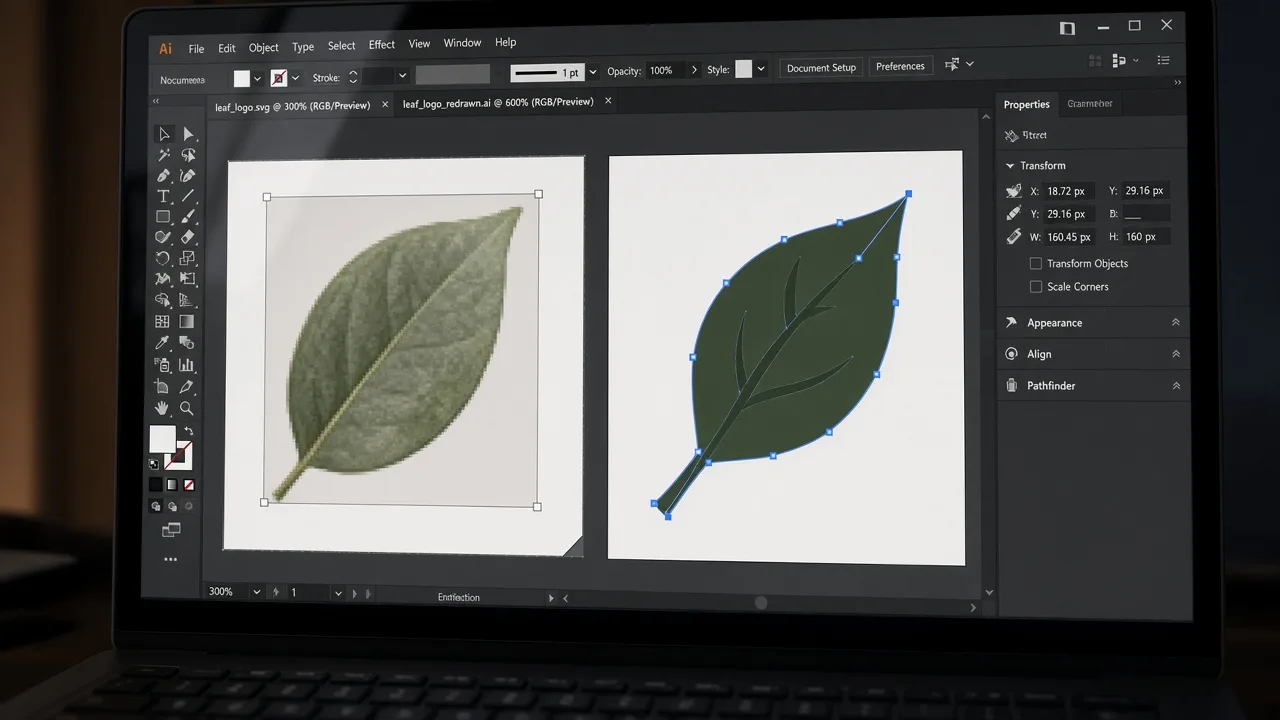
Canva's SVG download can mix true paths with placed images. Brand photos, many stock graphics and some "elements" stay pixels wrapped in an SVG container. A cutter that imports the file may ignore the photo, rasterize the whole artboard, or throw an error. Zoom to 400%: blocky edges mean it is still a picture.
PDF Print vs flattened output
PDF Print is usually the strongest Canva handoff for type and flat shapes. It can still flatten transparency, drop shadows, glows and blends into images. A shop that opens the PDF for cut paths may find a single flattened plate where you expected live letters. Open File > Properties > Fonts in Acrobat and inspect with the Direct Selection tool in Illustrator: if you cannot select letter outlines separately, you do not have cut-ready type.
Fonts, effects and mockup tricks
- Live fonts may embed in PDF Print but still substitute or refuse on a cutter. Outline them for cut and embroidery.
- Shadows, glows, blurs and liquify-style effects almost always rasterize on export.
- Mockup frames, photo backgrounds and "erase" brush work are pixels — fine for a social post, useless as cut geometry.
- Strokes that look thick on screen may still be live strokes; expand or outline them before a plotter run.
If the PDF is the only usable file left, recovering editable artwork is a separate job covered in how to convert a PDF to a vector image.
Send the export. Get production paths back.
A designer redraws the mark by hand as closed paths for vinyl, screen, embroidery or stickers — priced at upload from $19.
Need something custom? Email hello@vectorwiz.com
When DIY Canva export is enough
Be honest about the process. A flat digital flyer or a simple full-color label printed as pixels can often run from a clean PDF Print or a high-resolution PNG if the printer asks for raster. You do not need a redraw just because someone said "vector" out of habit.
- Enough: single-color or flat multi-color logos built only from Canva shapes, exported as SVG, opened and confirmed as paths, fonts outlined.
- Enough: digital print that accepts PDF with embedded fonts and no cut line.
- Not enough: weeded vinyl, HTV, contour-cut stickers, screen spot colors, embroidery — anything that follows a blade, mesh or stitch path.
- Not enough: any design that still contains a photo, mockup, soft shadow or "SVG" that stair-steps when zoomed.
For cut work, the full submission checklist lives on the vinyl cutting artwork requirements page — closed shapes, one layer per color, strokes to fills. This guide is about whether the Canva export can even enter that checklist.
What vinyl, screen, embroidery and stickers need from Canva art
| Process | What the machine needs | Typical Canva gap |
|---|---|---|
| Vinyl / HTV cut | Closed cut paths, outlined type | Embedded photos, live fonts, open strokes |
| Screen printing | Spot shapes or separations | RGB effects, photo fills, no spot layers |
| Embroidery | Clean shapes for digitizing | Tiny detail, soft edges, raster fills |
| Print-and-cut stickers | Art plus a separate cut contour | No cut layer, soft auto-contour from PNG |
Sticker and label shops that print then cut need art plus a CutContour-style path — covered on vector conversion for stickers. Garment DTF is a different raster workflow; hard-surface UV DTF has its own file rules.
A practical workflow from Canva to handoff
- Build with shapes and type where you can; avoid photos inside logos meant to cut.
- Download SVG and PDF Print. Keep PNG only as a visual reference.
- Open SVG in Illustrator, Inkscape or Affinity. Ungroup and inspect.
- Delete or replace any embedded image that should be a logo shape.
- Outline fonts; expand strokes that must cut; merge overlapping shapes.
- Save AI/EPS/SVG/PDF named for the shop, and state finished size in the order notes.
If the logo only exists as a Canva PNG and the paths are not recoverable, a redraw from the best export is faster than fighting Image Trace. Soft edges and alpha fringes on PNG sources are covered in PNG to vector.
Upload the Canva file the shop bounced.
Instant price at upload. Hand-redrawn paths for the process you name, with unlimited revisions until the file is right.
Need something custom? Email hello@vectorwiz.com
Frequently asked questions
Is a Canva SVG already a real vector file?
Sometimes. Flat shapes and Canva's own graphic elements often export as paths. Photos, many stock illustrations, shadows and complex effects stay as embedded rasters inside the SVG. Zoom in: stair-stepped edges mean pixels, not paths.
Should I download PDF Print or PNG from Canva for a printer?
PDF Print is the better Canva export when the design is built from shapes and type, because more of it can stay vector. PNG is always pixels. Even PDF Print can flatten effects or embed images, so open the file and check what is still live paths before you send it to cut or screen.
When is a Canva export good enough without a redraw?
When every shape the shop needs is already a closed path, fonts are outlined or embedded the way the shop accepts, and there are no photos or soft effects in the cut or print stack. Digital print of a flat flyer can often use a clean PDF Print. Vinyl cut, screen separations, embroidery and contour-cut stickers usually need a rebuild once anything is raster or effects-heavy.
Can VectorWiz turn my Canva logo into production vector?
Yes. Send the Canva export you have — SVG, PDF Print or PNG — and a designer redraws the artwork as clean paths for the process you name. Pricing is by complexity from $19. We redraw vector art; we do not edit photos or remove backgrounds.
Do Canva fonts need to be outlined for vinyl or embroidery?
Yes for cut and most embroidery digitizing. Live fonts can substitute on another computer. Outline type in a vector program after export, or have the lettering redrawn as shapes. See How to convert text to outlines for the method.
Naimur Rahman
Leads design direction and quality at VectorWiz. Reviews and redraws production artwork by hand across sign, wrap, screen-print, and CNC work.
Related articles
Drawn by hand. Built for production.
Hand-redrawn from $19, back in 24 hours. Upload for an instant price, no commitment.